
A 15-minute YouTube video usually has several moments that would work on their own as a short clip: a strong opinion, a surprising number, a quick how-to. Cut those moments into vertical clips and the same video can reach people on TikTok, Instagram Reels and YouTube Shorts who would never click a long video.
The work is mostly the same for all three apps. You pick the moments, crop them to 9:16, add captions, and export a clean file. The differences are in the length limits and in each app's rules about reposted content, which decide whether your clip gets recommended at all.
This guide covers both ways to do it: YouTube's built-in Shorts tool, and cutting clips yourself so you can post them everywhere. It also covers the specs, the originality rules and how to publish one clip to all three apps at once.
Key takeaways
- Only repurpose videos you own or have written permission to use. Giving credit is not permission.
- YouTube Studio can turn your video into a Short for free, but that Short stays on YouTube. For TikTok and Reels, cut the clip in an editor from your original file.
- Shorts can be up to 3 minutes. Instagram doesn't recommend Reels longer than 3 minutes to new audiences. TikTok's Creator Rewards program pays only on videos over 1 minute.
- Export without another app's watermark. TikTok and Instagram both limit recommendations for watermarked or reposted clips.
- Keep captions and text out of the top 14% and bottom 35% of the frame, where each app's buttons sit.
In this guide:
- First: only use videos you own
- Option 1: make a Short in YouTube Studio
- Option 2: cut clips yourself, step by step
- Specs and length limits for each app
- Tools for clipping long videos
- Originality rules on TikTok, Instagram and YouTube
- Post one clip to TikTok, Reels and Shorts at once
- Film your next video with clips in mind
- FAQ
First: only use videos you own
Everything in this guide assumes the YouTube video is yours, or that you have written permission or a license from whoever owns it. YouTube's Terms of Service don't allow downloading videos unless YouTube offers a download option or you have permission from YouTube and the rights holders. YouTube's copyright help also says that crediting the creator, or writing "no copyright infringement intended", doesn't give you any rights to the video.
If you want to share someone else's video on Instagram, use Instagram's own Repost or Stories share, which keeps the original creator attached.
How to get a copy of your own video
The best source is the original file you exported from your editor before uploading. It's the highest quality you have, and cropping to vertical throws away part of the frame, so you want every pixel you can keep.
If you no longer have it, YouTube Studio can give it back to you:
- Open YouTube Studio and go to Content.
- Hover over the video, open its options menu and select Download.
Studio downloads are MP4 files at 720p or 360p only, and you can download up to 5 videos in 24 hours. The option isn't available for removed videos, videos with a copyright strike, or videos that use preapproved music. To export all your uploads at once, use Google Takeout.
Option 1: make a Short in YouTube Studio
YouTube has a free tool that turns part of a long video into a Short without leaving Studio:
- In YouTube Studio, go to Content and open the video.
- Select Clips and Shorts, then Create clip or Short, then Short.
- Pick the segment from the transcript or the timeline. In some countries and languages, YouTube also suggests segments with AI.
- Review the captions YouTube adds automatically, then publish.
Two things make this tool worth using. YouTube adds the full video as the Short's related video automatically, so viewers can tap through to it (this doesn't apply to private, unlisted or made-for-kids Shorts). And YouTube's help page for the tool says you won't be penalized for reusing your own content.
On a phone, you can do something similar from the YouTube app with Remix, then Cut.
The limitation is that the Short lives on YouTube. To post the same clip to TikTok and Reels, you'd have to download it from Studio at 720p. If you're posting to all three apps, it's better to cut the clip once in an editor, from your original file, and publish that file everywhere.
Option 2: cut clips yourself, step by step
Step 1: Pick moments that make sense on their own
Most people who see your clip haven't watched the full video. Each clip needs a beginning, a point and an end, without "as I said earlier". Moments that usually work:
- A strong opinion. One clear claim and the reason behind it.
- A number or result. "We tried this for 30 days and here's what happened."
- A short story. A mistake, a customer moment, something that went wrong.
- A quick how-to. One tip someone can use today.
A quick test: imagine a stranger sees only this clip. If they'd understand it and get something from it, it's a good clip.
Step 2: Start with the hook
Move the strongest line to the very start, even if it came halfway through the moment in your video. Instagram's creator guidance is to make the first 3 seconds engaging, and YouTube's Shorts guide says to grab attention in the first few seconds. Cut greetings, intros and "don't forget to subscribe".
Step 3: Crop to 9:16
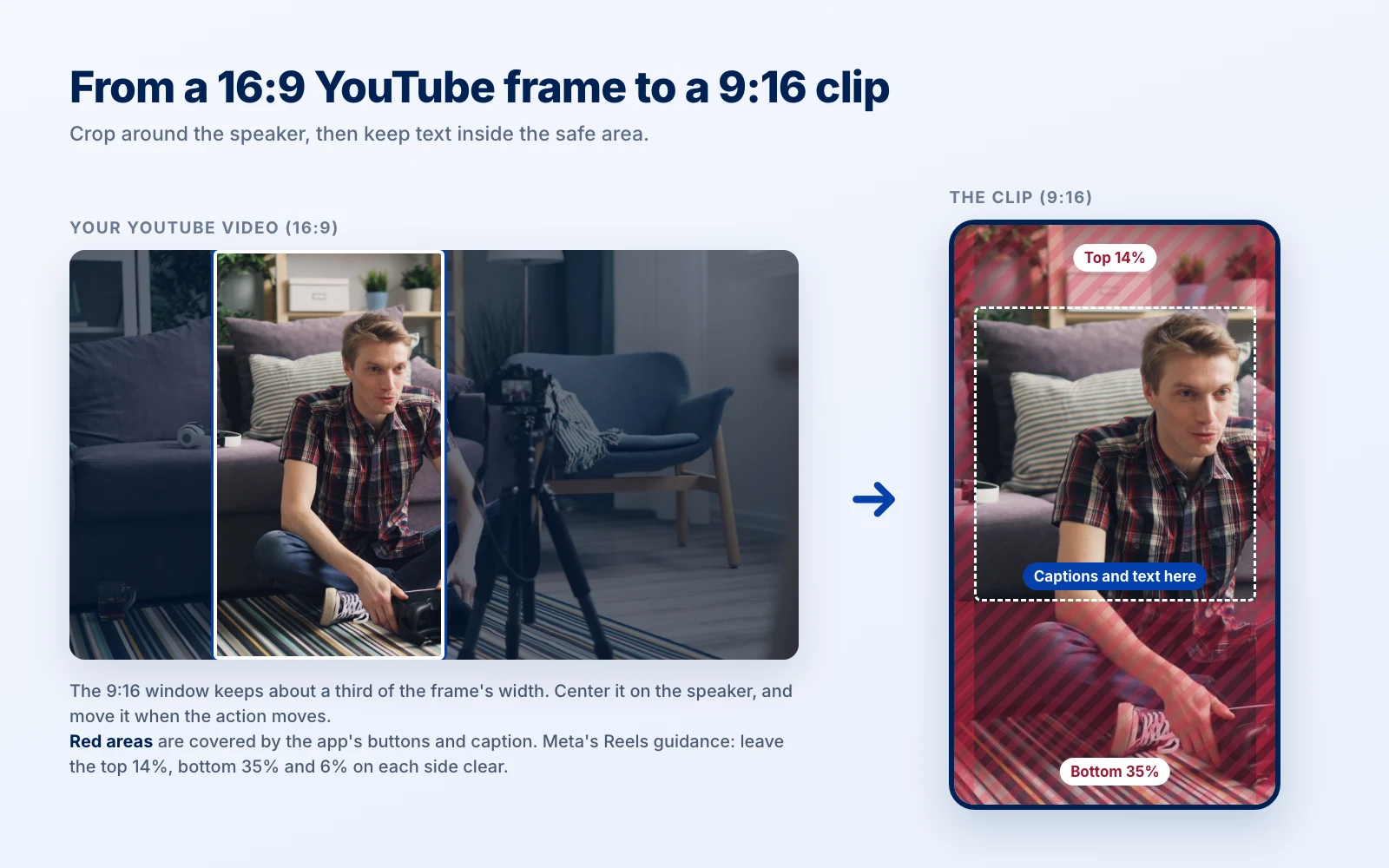
A vertical 9:16 window keeps only about a third of a 16:9 frame's width, so where you put it matters:
- One person talking. Center the window on their face. Most editors can track the speaker automatically.
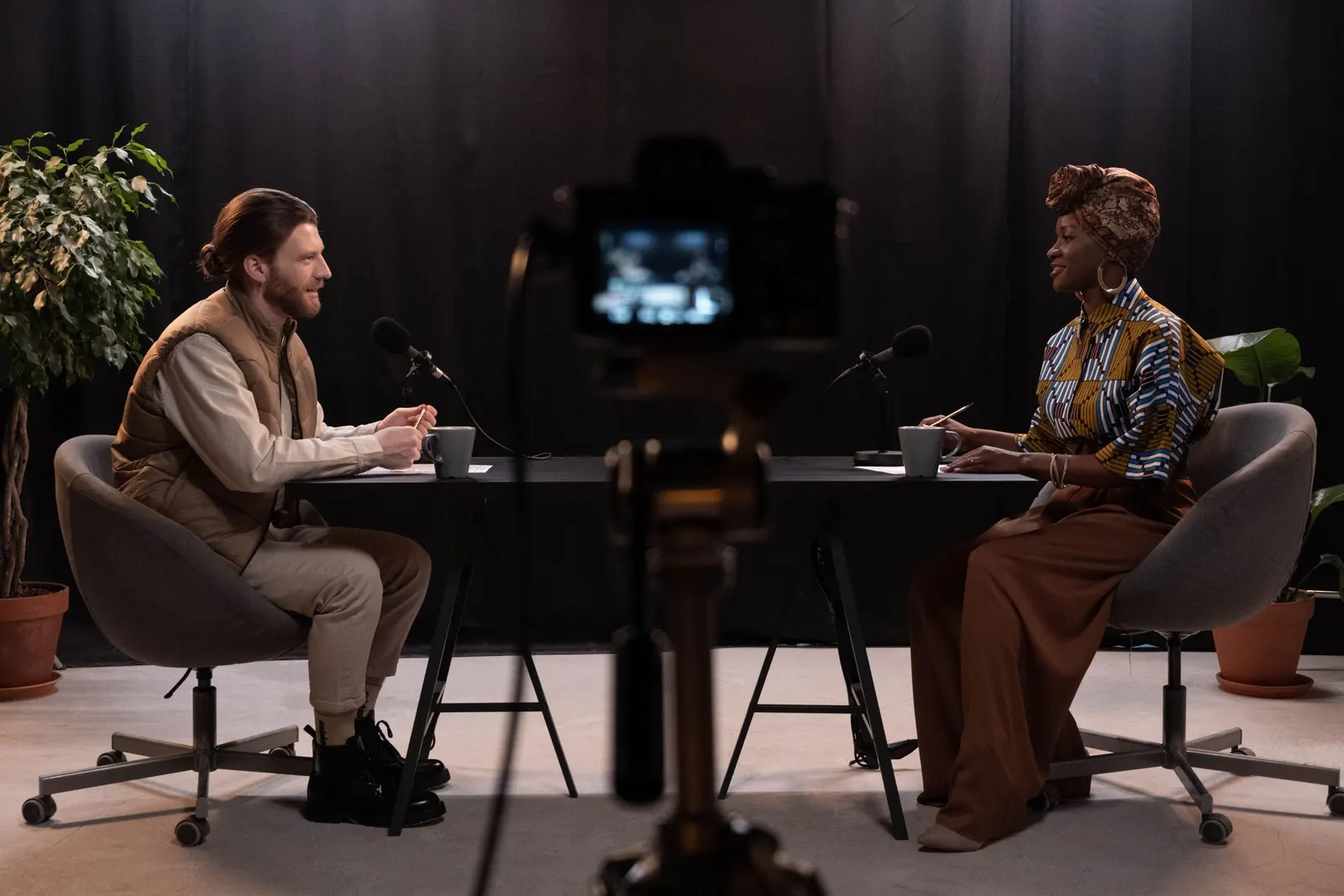
- Two people. Cut between them as each one speaks, or stack them, one above the other.
- A screen recording. Zoom into the part of the screen that matters instead of shrinking the whole screen.
Step 4: Add captions, inside the safe area
Add captions so the clip still works with the sound off. YouTube's Shorts guide recommends text overlays or captions. Keep them short and high contrast.
Each app puts its buttons, username and caption over the edges of the video. Meta's guidance for Reels is to keep text and logos out of the top 14%, the bottom 35% and 6% on each side. That works as a rule of thumb for TikTok and Shorts too, since their buttons sit in the same places.
Step 5: Check the length
Each app has its own limits, covered in the specs table below. The one to plan around: if you're in TikTok's Creator Rewards program, only videos over 1 minute earn money there, so a 45-second clip earns nothing even if it does well.
Step 6: Export a clean file
Export at 1080 x 1920, the standard size for all three apps. Don't download your clip from TikTok to post it on Instagram, or the other way around. Downloads carry the first app's watermark, and both apps limit how far watermarked clips spread (more on that in the originality rules).
Step 7: Write a caption for each app
The video can be identical, but the text around it shouldn't be. A YouTube Short needs a title, so put the topic in plain words people would search for. On TikTok and Instagram, a short caption that says what the clip is about is enough. Add a question if you want comments.
Specs and length limits for each app
| YouTube Shorts | Instagram Reels | TikTok | |
|---|---|---|---|
| Shape | Vertical or square | Anything from 1.91:1 to 9:16; 9:16 fills the screen | 9:16 |
| Maximum length | 3 minutes | 20 minutes when made in the app | 60 minutes uploaded, 10 minutes recorded in the app |
| Length limits that matter | A Short over 1 minute with an active copyright claim is blocked worldwide | Reels over 3 minutes aren't recommended to people who don't follow you | Creator Rewards pays only on videos over 1 minute |
| Export size | 1080 x 1920 | 1080 x 1920 (at least 720 pixels, 30 fps) | 1080 x 1920 (Creator Rewards needs 1080p or higher) |
Checked November 20, 2026, on YouTube, Instagram and TikTok's help pages. The Shorts limit of 3 minutes applies to videos uploaded on or after October 15, 2024. The copyright rule matters if your long video uses music: a longer clip that keeps the song can get blocked.
For the full dimensions and cover sizes, see TikTok video size and Instagram Reel size.
Tools for clipping long videos
| Tool | What it does | Free plan |
|---|---|---|
| YouTube Studio | Clips and Shorts tool: pick a segment, AI suggestions, automatic captions | Free, but the Short stays on YouTube |
| CapCut | Finds highlights with AI, reframes 16:9 to 9:16 by tracking the subject, adds captions | Yes |
| Opus Clip | AI clipping, 9:16 reframe and captions | Yes, with a watermark on animated captions. Paid from $15 a month |
| Descript | Edit by editing the transcript; Create Clips finds short clips | 60 minutes a month at 720p with a watermark. Create Clips needs Hobbyist, $16 a month billed yearly |
| Kapwing | Clip Maker and Repurpose Studio for cutting and resizing | 720p with a watermark, videos up to 4 minutes. Pro from $16 a month |
| Vizard | AI clipping, reframing and subtitles | 60 credits a month at 720p with a watermark |
Prices are from each company's pricing page, checked November 20, 2026. Watch for watermarks on free plans: a free-plan watermark can count against you under the originality rules below. For more editing and writing tools, see our list of AI content creation tools.
Originality rules on TikTok, Instagram and YouTube
All three apps now favor original content in recommendations. Clips from your own videos are original. These are the things that can get a clip held back:
- TikTok treats content as unoriginal if it's copied, repurposed without creative edits, a low-value compilation, or shows someone else's watermark or logo. Unoriginal videos may not be recommended in the For You feed and can't earn Creator Rewards.
- Instagram has, since April 2024, shown the original in recommendations instead of identical copies, and it doesn't recommend content with visible watermarks. In April 2026 it extended this to photos and carousels, and said that adding a border, a watermark, subtitles or a credit line isn't enough to make a repost original.
- YouTube doesn't let reused content without significant original input earn money, and that includes Shorts. This rule is about other people's content. For your own videos, YouTube's Clips and Shorts help says you won't be penalized for reusing them.
The practical rule: clip your own videos, edit them for vertical, and post a clean file to each app.
Post one clip to TikTok, Reels and Shorts at once
Once the clip is exported, you can upload it three times, once in each app. Or you can schedule it to all three from one place. Ampli's Free plan includes 3 channels, which covers TikTok, Instagram and YouTube. Here's how it works:
- Connect your accounts. In Ampli, connect TikTok, your Instagram business or creator account, and your YouTube channel.
- Create a post. Go to New Post, select the three accounts and upload the clip.
- Write a caption for each app. Write one caption, then use Customize per Channel to give TikTok, Instagram and YouTube their own text.
- Check each app's settings.
- Instagram: choose Reels.
- TikTok: choose Direct Publish and who can view it, or Send to TikTok Inbox to finish the post in the TikTok app, for example to add a sound. Videos sent to the inbox arrive without the caption.
- YouTube: keep YouTube Short checked, write a title of up to 100 characters, and set the visibility to Public. It starts as Private.
- Schedule it. Pick a date and time in your time zone, or publish now.
A few limits to know. Ampli publishes a Short only if the video is vertical or square and 3 minutes or less. Through TikTok's posting API, which schedulers use, every account can post videos up to 3 minutes, and some accounts can post longer. On the Free plan, each post can include up to 50 MB of media, and you get 30 posts a month, where each channel counts as one post. So one clip to all three apps uses 3. Paid plans allow up to 1 GB per post and unlimited posts.
Ampli doesn't cut or crop video, so make the clip with one of the tools above first. If you use Claude or ChatGPT, you can also connect Ampli and ask it to schedule the clips for you.
Spread the clips out
If one video gives you five clips, don't post them all on the same day. Schedule one a day for the week after the video goes live. You get five days of posts from one recording, and each clip gets a chance to find its own audience. Pick times when your followers are online; our guide to the best time to post on Instagram is a good starting point.
Film your next video with clips in mind
A few habits while filming make the clips much easier later:
- Keep yourself near the center of the frame. A 9:16 crop of a centered speaker needs no tracking.
- Say key points as full sentences. "The biggest mistake new bakers make is..." works as a clip. "And that's the other thing" doesn't.
- Pause between sections. Clean pauses give you clean cut points.
- Keep important text away from the edges. Titles and lower thirds at the sides of a 16:9 frame get cropped out.
For how each app decides who sees your clips, see how the TikTok algorithm and the Instagram algorithm work. To share the full video on Instagram instead of clips, see how to post a YouTube video on Instagram.
FAQ
Can I turn someone else's YouTube video into TikToks?
Only with written permission or a license from the person who owns it. Crediting them doesn't count as permission. Reposted clips also tend to be held back from recommendations: TikTok treats content repurposed without creative edits as unoriginal, and Instagram shows the original instead of copies.
Will YouTube penalize Shorts made from my own videos?
No. YouTube's help page for its Clips and Shorts tool says you won't be penalized for reusing your own content. Shorts made with that tool also link back to the full video automatically.
How long should each clip be?
As long as the moment needs, within each app's limits. Shorts can't be longer than 3 minutes, and Instagram doesn't recommend Reels over 3 minutes to new audiences. If you're in TikTok's Creator Rewards program, go over 1 minute, because shorter videos don't earn.
Can I post the same clip to TikTok, Reels and Shorts?
Yes, if it's your own video and the file has no other app's watermark. Export one clean file from your editor and upload that file to each app.
How do I download my own YouTube video in high quality?
YouTube Studio only downloads at 720p or 360p. For the best quality, use the original file you exported from your editor. Google Takeout can export all your uploads at once.
Can a Short link to my full video?
Yes. A Short can have a related video, which appears below the channel name. If you make the Short with YouTube Studio's Clips and Shorts tool, YouTube adds the full video as the related video automatically, unless the Short is private, unlisted or made for kids.
Does Ampli cut the clips for me?
No. Ampli schedules and publishes. Cut the clip in an editor like CapCut or YouTube Studio, then upload it to Ampli once and send it to TikTok, Instagram and YouTube.
Turn one video into a week of posts
Pick your last YouTube video, find three moments that work alone, and cut them to vertical. Schedule one a day and see which app responds best.
Try Ampli free to schedule each clip to TikTok, Instagram Reels and YouTube Shorts from one calendar, with a caption for each app.