
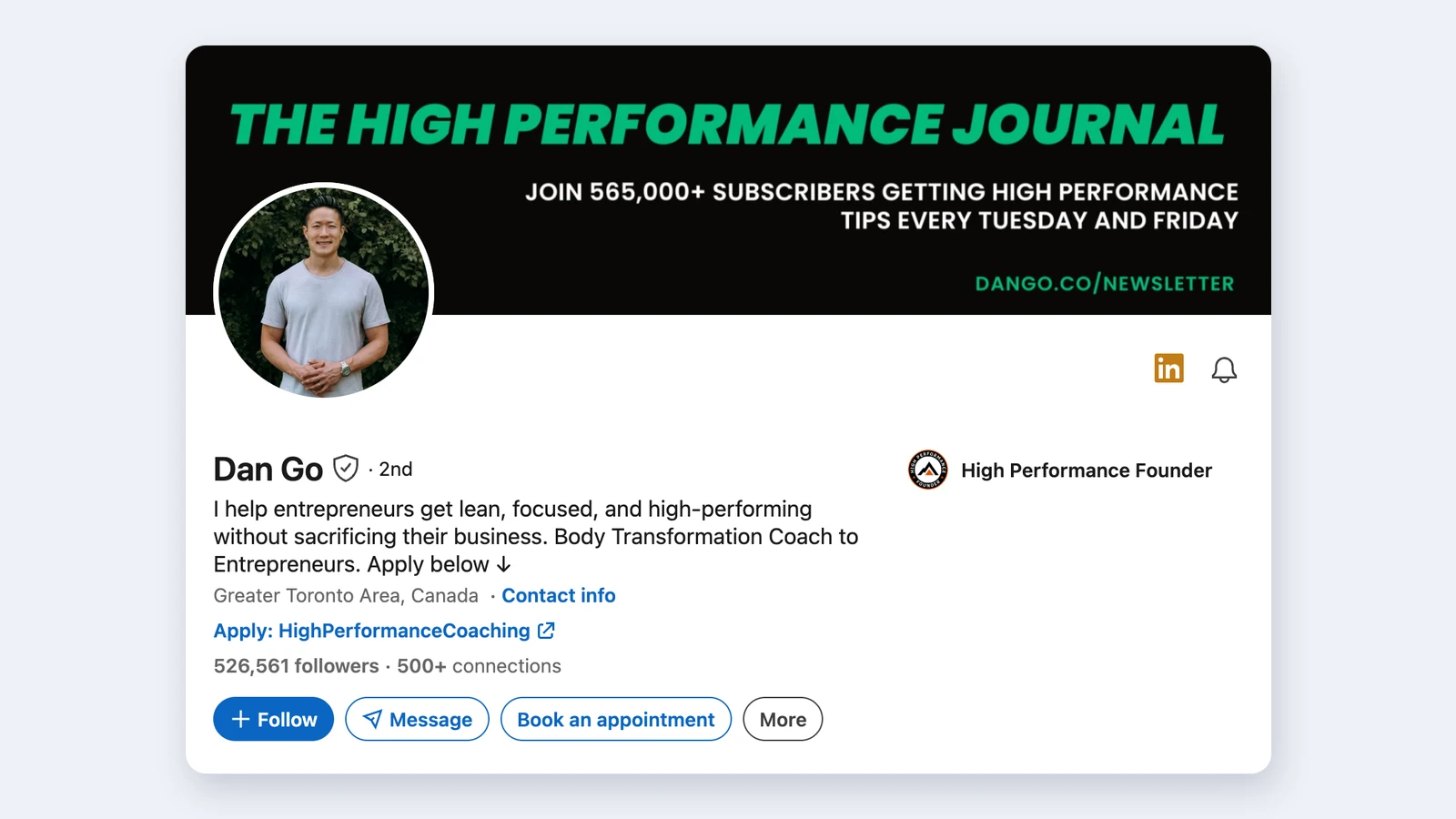
To add a link to your LinkedIn profile, open your profile, click Contact info under your name, click the pencil icon, and choose Add website. You can list up to three websites there, each with a label, and every member can use them for free. If you want a link that shows up as a card with an image, add it to your Featured section instead.
Those are the two places that work for everyone. LinkedIn also has a custom profile button for some Premium subscribers, a call-to-action button for company Pages, and links you share in posts. This guide covers each one, which link belongs where, and what to check when a link won't save.
One note on the word "bio": LinkedIn has no single bio link field like Instagram or TikTok. A URL typed into your headline or About section shows up as plain text that nobody can click. When people talk about the link in their LinkedIn bio, they almost always mean the websites in Contact info.
Every place you can add a link on LinkedIn (cheat sheet)
| Where | Who can use it | Where people see it | Limit |
|---|---|---|---|
| Contact info websites | Every member | The Contact info pop-up on your profile | Up to 3 websites |
| Featured section | Every member | A row of cards below your intro | Your own posts and articles, outside links and uploaded media |
| Custom profile button | A select group of Premium Business, Sales Navigator and Recruiter Lite subscribers | Your intro, plus your posts, messages and search results by default | 1 button, and it replaces your services |
| Posts and comments | Every member | The feed | A clickable URL, usually with a preview card |
| Company Page button | Page super admins, rolling out gradually | Your Page (under More without Premium Company Page) | 1 button |
| Custom profile URL | Every member | Your linkedin.com/in/ address | 3 to 100 characters, up to 5 changes in 6 months |
What happened to the creator mode link?
Creator mode used to let members put a link in their intro. LinkedIn removed the creator mode switch in 2024, and it has since stopped letting people add new intro links: a link that was already there can stay, but once it's removed it can't be added back. If a guide tells you to turn on creator mode to add a link, it's out of date. Use Contact info or Featured.
How to add a website to your LinkedIn profile
On a computer
- Click the Me icon at the top of LinkedIn, then View profile.
- Click Contact info under your name and headline.
- Click the pencil icon in the Contact info pop-up.
- Click Add website.
- Paste the full address, including https://, and pick a website type such as Company, Blog or Portfolio. Choose Other to write a short label of your own.
- Click Save.
In the LinkedIn app (iPhone and Android)
- Tap your profile photo, then View profile.
- Tap the pencil icon on your intro.
- Scroll to Contact info and tap Edit contact info.
- Tap Add website, paste the URL and choose a type.
- Tap Save.
Your websites only appear once someone opens Contact info, so the first one in the list is the one people see first. Put the link you care about most at the top, then open each link from your profile to make sure it goes where you expect.
How to add a link to your Featured section
Featured sits below your intro and shows each item as a card with an image and a title, which makes it the most visible spot on your profile for a link. You can feature posts you've written or re-shared, articles you've published on LinkedIn, links to outside sites such as a portfolio or blog, and uploaded images, documents, presentations and videos.
- Click Me, then View profile.
- Click Add profile section in your intro.
- Open Recommended and click Add featured.
- Click the + icon at the top right of the Featured page and choose to add a link.
- Paste the URL, check the title and description LinkedIn pulls from the page, and click Save.
In the app, the path is your profile photo, View profile, Add section, Recommended, then Add featured.
Two limits apply. A post has to be published on LinkedIn before you can feature it, and you can't feature posts from Groups you belong to or Events you're attending.
Reorder or remove Featured items
Use the Reorder icon at the top right of the Featured page to change the order. It only appears once you have at least two items. Removing an item from Featured is permanent: LinkedIn can't restore it, so bringing it back means adding it again from scratch.
How to add a custom button to your LinkedIn profile
The custom button puts a link right on your intro, under your headline. LinkedIn offers it to a select group of Premium Business, Sales Navigator and Recruiter Lite subscribers and says it may reach more members later. If you don't see the option, your account doesn't have it yet.
- Click Me, then View profile.
- Click Add custom button in your intro.
- Pick a label: Visit my website, Visit my store, View my portfolio, View my blog, Book an appointment, View my newsletter or View my services.
- Paste the URL and click Done.
Know two things before you add one. The button replaces the services listed on your profile, because LinkedIn shows one or the other. And it appears on your posts, messages and search results by default. Turn off Increase button visibility if you only want it on your profile. To change or remove it later, click the pencil icon on your intro and choose Edit custom button.
How to add a button to your LinkedIn company Page
Company Pages get their own call-to-action button that can link to any URL. LinkedIn is still rolling it out, so some Pages don't have it yet.
- Open your Page's super admin view.
- Click Edit page in the left menu.
- In the Buttons tab, turn on Custom button.
- Choose a button name and enter the URL.
- Optionally turn on Increase button visibility, then save.
Without a Premium Company Page subscription, the button only shows when visitors click More on your Page. With one, it sits at the top of the Page, appears on your posts and search result cards, and you can see how many people clicked it in Visitor analytics. Your Page's website field in the Page details is a link too, and it's free for every Page.
Which link should go where
- Job seekers: your portfolio or resume first in Contact info, and your best project or case study in Featured.
- Freelancers and consultants: a booking page or services page first in Contact info, and a client result or testimonial post in Featured.
- Creators: your newsletter or a link-in-bio page in Contact info, and your strongest post in Featured.
- Small businesses: the company website on the Page button and in the Page details, and the current offer or launch in each team member's Featured section.
Featured works like a shop window: two or three strong items beat a long row nobody scrolls. Swap them out when you launch something new.
Why can't I add a link to my LinkedIn profile?
- You're following old creator mode steps. New intro links aren't available. Use Contact info or Featured.
- The website won't save. Paste the full address with https:// and check for spaces or typos.
- All three Contact info slots are used. Remove one, or point one at a page that lists the rest of your links.
- There's no Add custom button option. It's limited to a select group of Premium subscribers.
- A post won't show up in Featured. Posts from Groups and Events can't be featured.
- Your services disappeared. Adding a custom button replaces them.
- Your Page button is hard to find. Without Premium Company Page it sits under More.
- The link isn't clickable. URLs in your headline and About section show as plain text. Move the link to Contact info or Featured.
How to customize your LinkedIn profile URL
Your profile address is a link too, and a clean one like linkedin.com/in/yourname is much easier to put on a resume, email signature or business card than the default string of numbers.
- Click Me, then View profile.
- Click Edit public profile & URL on the right side of your profile.
- Click the pencil icon next to your public profile URL.
- Type the new ending and click Save.
Custom URLs can be 3 to 100 characters, without spaces, symbols or special characters, and they're first come, first served. If your name is taken, add a middle initial, your field or your city. You can change your URL up to five times in six months, so pick one you'll keep, and update your resume and email signature after you change it.
Schedule your LinkedIn posts with Ampli
Your profile links are where people end up. Your posts are what send them there. If you post on LinkedIn regularly, Ampli lets you write a post once, adjust the caption for each channel, and queue it for your LinkedIn profile alongside Instagram, X, Threads, Facebook, Pinterest, TikTok and YouTube. Everything sits on one calendar, with drafts for ideas and Publish now for anything that can't wait.
You can also connect Ampli to Claude or ChatGPT through MCP and schedule posts straight from your AI agent. The Free plan covers 2 channels and 30 published posts a month, with no credit card.
How to get more clicks from your LinkedIn links
Label every website
In Contact info, a label like Portfolio or Book a call tells visitors what they'll get before they click. A bare company name doesn't.
Write Featured titles for the reader
LinkedIn pulls a title and description from the page you link to. Read them before you save, since a page's default title is often written for search engines rather than people.
Track clicks with UTM parameters
Add tags such as ?utm_source=linkedin&utm_medium=profile to your website links so your analytics show how many visits your profile sends. Use a different medium for Featured so you can compare the two.
Point to your links in your posts
A post that ends with "the full case study is in my Featured section" sends readers to your profile, where every link is in one place. If you want the first line of that post to stand out, the LinkedIn font generator turns text into bold or italic Unicode you can paste in. Use it for a few words only, since screen readers can struggle with styled characters.
Frequently asked questions
Can I add a link to my LinkedIn profile for free?
Yes. Every member can add up to three websites in Contact info and add links to the Featured section. Only the custom profile button needs a paid plan.
How do I put a link in my LinkedIn bio?
Add it as a website in Contact info: open your profile, click Contact info, click the pencil icon, choose Add website, then save. For a more visible link with an image, add it to Featured too.
How many links can I have on LinkedIn?
Up to three websites in Contact info, plus the links in your Featured section. Eligible Premium subscribers can add one custom button on top of that.
Why isn't the link in my LinkedIn About section clickable?
LinkedIn doesn't turn URLs in your About section or headline into links. Put the address in Contact info or Featured, and mention it in your About section if you want to point people to it.
How do I add my LinkedIn profile to my Instagram bio?
Copy your LinkedIn profile URL. In Instagram, go to your profile, tap Edit profile, then Links, then Add external link. Paste the URL, give it a title and save. Instagram allows up to five links in your bio.
Can a LinkedIn company Page have a website button?
Yes. Super admins can add a custom button from Edit page, in the Buttons tab, if the feature has reached their Page. Without Premium Company Page, the button appears under More.
Want your LinkedIn posts planned a week ahead instead of written the morning of? Schedule them with Ampli. Start free — no credit card required.
Related: LinkedIn image sizes and how to add a link to a Facebook post.