
You can’t schedule an Instagram Story inside the Instagram app. The app lets professional accounts schedule posts, carousels and Reels, but the Stories camera only has one button: share now.
That doesn’t mean you have to post every Story by hand. Since 2023, Meta has let scheduling tools publish Stories automatically, and its own Meta Business Suite can schedule them too. So the real question is which method fits how you work.
This guide covers the three options, step-by-step instructions for each one, what a scheduled Story can and can’t include, and how to plan a week of Stories in one sitting.
Key takeaways
- The Instagram app can’t schedule Stories. Meta Business Suite and third-party schedulers like Ampli can.
- You need an Instagram professional account (business or creator) for a Story to publish automatically.
- A scheduled Story is one photo or one video: a JPEG up to 8 MB, or a 3 to 60 second MP4 or MOV up to 100 MB.
- Link, poll and question stickers, songs from Instagram’s music library and Close Friends can’t be scheduled. Add those in the app.
- Most viewers who leave do it on the first three Stories in a row, so put your strongest frame first.
In this guide:
- Can you schedule Instagram Stories?
- What you need before you start
- How to schedule Instagram Stories with Ampli
- How to schedule Instagram Stories with Meta Business Suite
- What you can’t schedule (and what to do instead)
- What the data says about Stories
- How to plan a week of Stories
- Tips for scheduled Stories that people watch
- FAQ
Can you schedule Instagram Stories?
Yes, just not in the Instagram app. Instagram’s built-in scheduler, under Advanced settings when you share a post, works for photos, carousels and Reels. It lets professional accounts schedule up to 25 posts a day, up to 75 days ahead (Instagram Help Center). Stories aren’t part of it.
For Stories you have two kinds of tools to choose from:
| Method | Schedules Stories? | Publishes automatically? | Best for |
|---|---|---|---|
| Instagram app | No | Not applicable | Posting a Story right now, with stickers and music. |
| Meta Business Suite | Yes | Yes | Accounts that only post to Instagram and Facebook. |
| A scheduler such as Ampli | Yes | Yes, for professional accounts | Planning Stories next to posts for TikTok, YouTube, LinkedIn and other networks in one calendar. |
Third-party tools gained this in May 2023, when Meta added Stories to the Instagram API that schedulers use to publish (Meta for Developers). Before that, a scheduled Story was only a phone reminder that you finished posting yourself. Some tools still use reminders for personal accounts, or for Stories with stickers.
What you need before you start
A professional account. Instagram only lets outside apps publish to business and creator accounts (Meta for Developers). Switching is free: in the Instagram app, go to Settings and activity, then Account type and tools, and choose Switch to professional account. Meta’s 2023 announcement of Story publishing named business accounts specifically. If a creator account’s scheduled Stories ever fail, switching it to a business account is the usual fix.
Media in the right format. Each Story is one photo or one video. Meta’s publishing rules for Stories (Meta for Developers):
| Spec | Photo Stories | Video Stories |
|---|---|---|
| Recommended size | 1080 × 1920 px (9:16) | 1080 × 1920 px (9:16) |
| Format | JPEG | MP4 or MOV, H.264 or HEVC video, AAC audio |
| Maximum file size | 8 MB | 100 MB |
| Length | Not applicable | 3 to 60 seconds |
| Frame rate | Not applicable | 23 to 60 frames per second |
A video longer than 60 seconds has to be split into separate Stories before you schedule it. Ampli converts other photo formats, such as PNG, to JPEG for you, so in practice the 9:16 shape matters most.
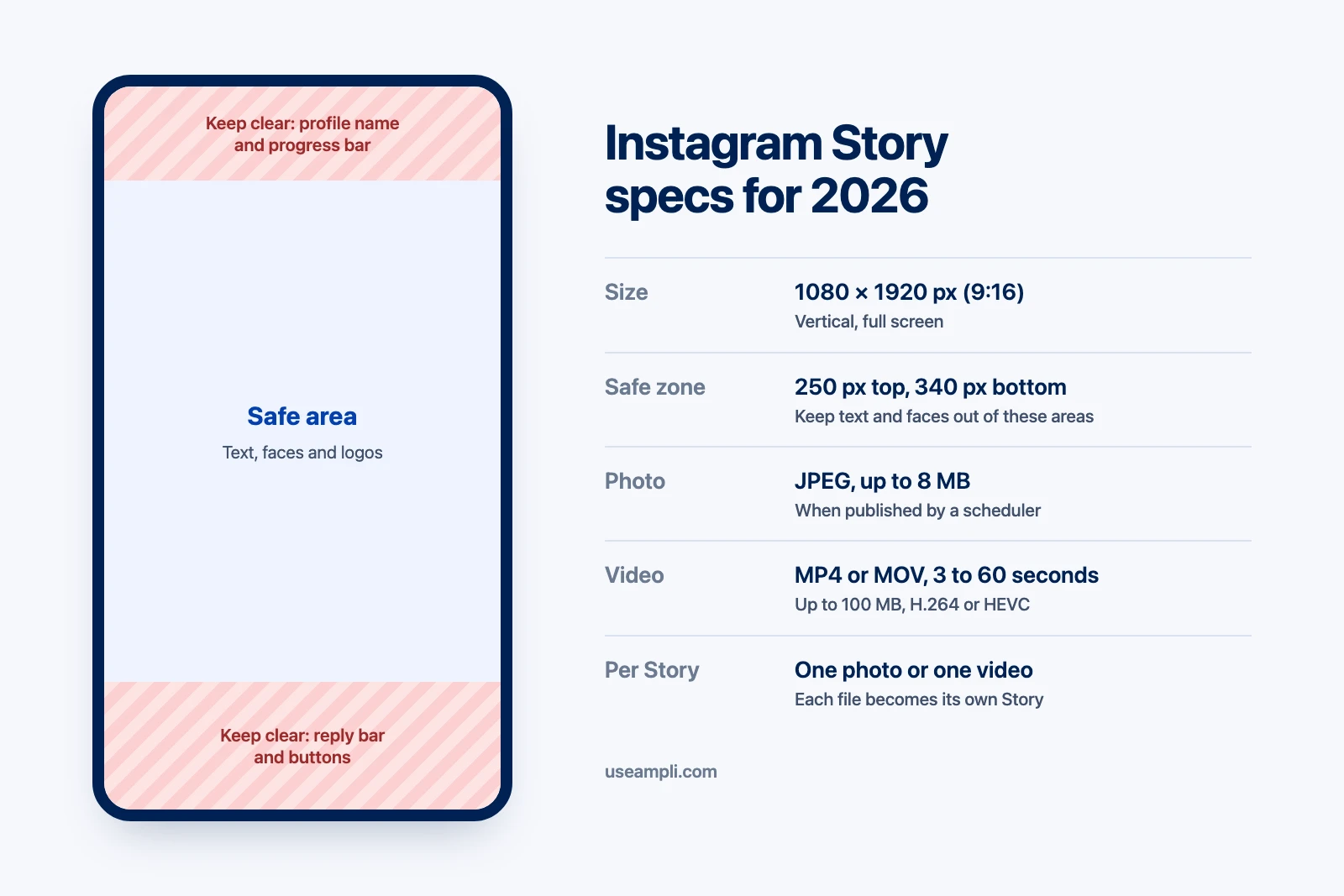
Room for Instagram’s buttons. Your profile name and the progress bar sit over the top of every Story, and the reply bar sits over the bottom. Keep text, faces and logos out of roughly the top 250 pixels and bottom 340 pixels. If your Stories come out soft once posted, see our guide to why Instagram Stories look blurry.
How to schedule Instagram Stories with Ampli
Ampli publishes Instagram Stories automatically at the time you pick. There’s no reminder to tap. Connect your Instagram professional account once, then:
- Start a post. Click New Post in the sidebar.
- Pick your Instagram account. Select it in the row of accounts at the top of the composer.
- Choose Stories. Under Post Type, click Stories. The caption box disappears, because Instagram doesn’t show captions on Stories.
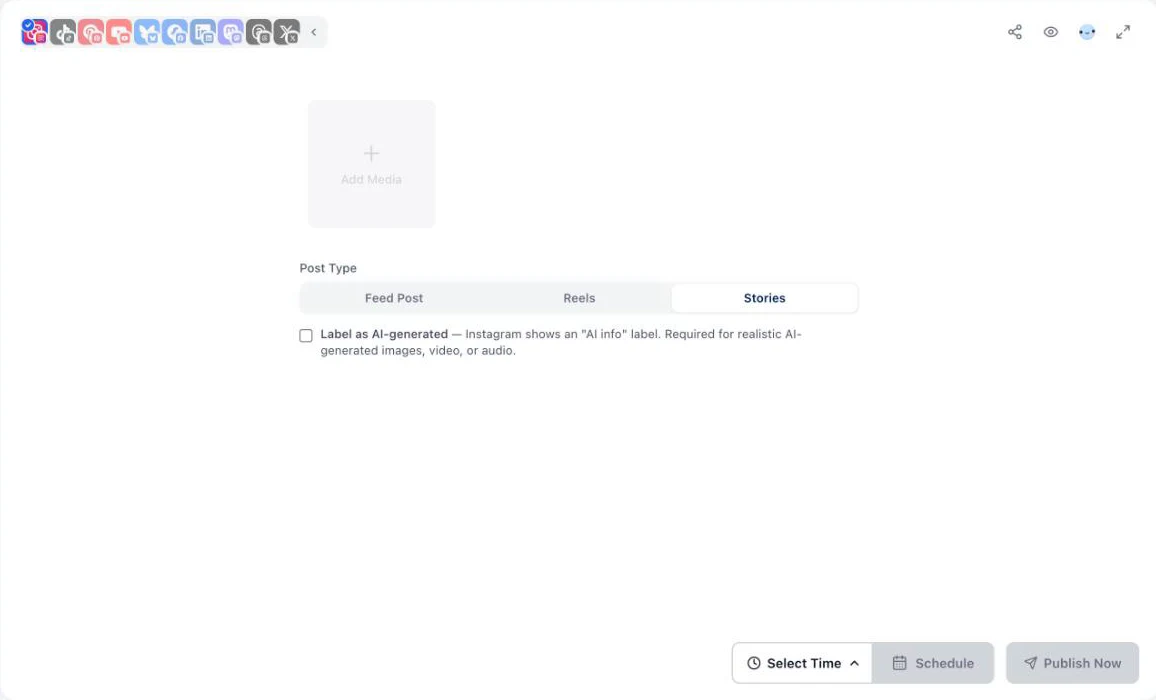
- Add your photo or video. Click Add Media and upload one file. Ampli checks it against Instagram’s Story limits before you schedule, so a 75-second video is flagged now instead of failing later.
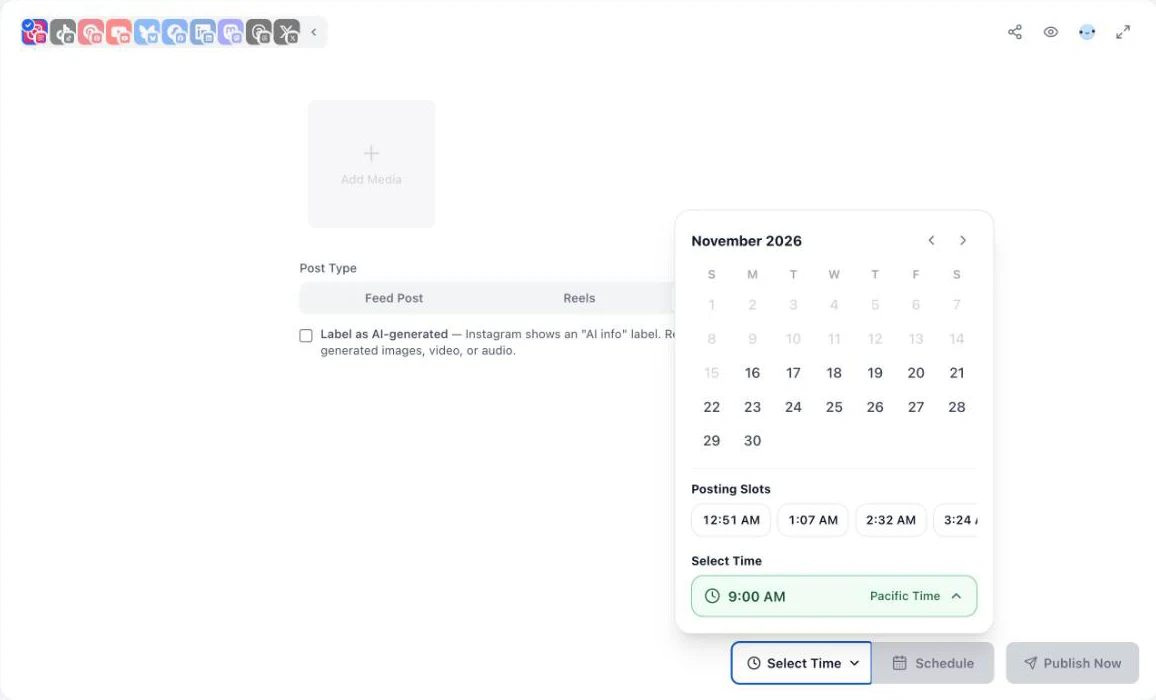
- Pick a time. Click Select Time, choose the day, then set a time or tap one of the suggested Posting Slots.
- Schedule it. Click Schedule. The Story appears in your Schedule tab, where you can edit or cancel it until it goes out.
Repeat this for each Story in a sequence, a few minutes apart. If you select other channels in the same post, such as TikTok or Facebook, they get a normal post with your caption, and Instagram gets the Story.
You can also schedule Stories from Claude or ChatGPT. Ampli’s MCP server and API accept Stories as an Instagram post type, so an AI assistant can upload a file and schedule it for you.
How to schedule Instagram Stories with Meta Business Suite
Meta Business Suite is free and made by Meta, so it supports Instagram and Facebook only. On a computer:
- Go to business.facebook.com and open your business.
- Click Create story (you can also get there from the Planner).
- Under Share to, select your Instagram account. You can add your Facebook Page as well, to post the same Story to both.
- Upload your photo or video and make any edits.
- Open the menu next to Share now, choose Schedule, and set the date and time.
- Click Schedule to confirm.
The Meta Business Suite mobile app has the same flow: tap Create, then Story. Meta renames and moves these menus often, so the labels may differ slightly on your screen.
Business Suite works well if Instagram and Facebook are your only channels. If you also post to TikTok, YouTube, Pinterest, LinkedIn or X, you’ll end up planning in two places, which is where a cross-platform tool such as Ampli’s content scheduler saves time.
What you can’t schedule (and what to do instead)
Instagram only lets outside tools publish the media itself. Meta’s documentation says plainly that link, poll and location stickers can’t be published through the API (Meta for Developers). That applies to every scheduler, not just one.
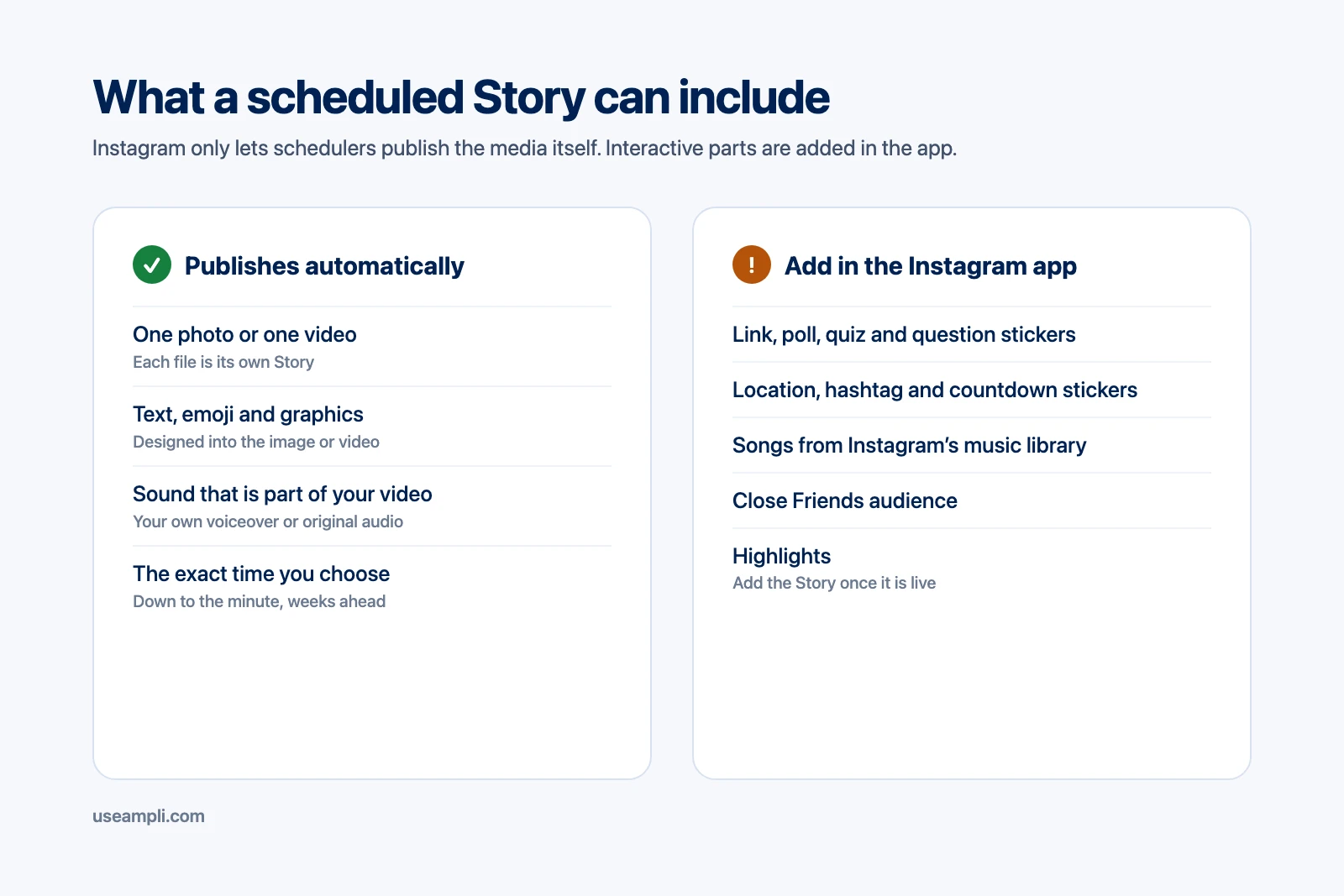
You can’t add stickers to a Story after it’s live, so plan around it:
- Text, emoji and graphics: design them into the image or video before you upload it, in Canva, CapCut or your editor of choice. They publish exactly as designed.
- Links: post Stories that need a link sticker from the Instagram app. Our guide to adding a link to an Instagram Story covers the steps. For scheduled Stories, point people to the link in your bio instead.
- Polls, quizzes and questions: post these live from the app. They work best when you can answer the replies as they arrive anyway.
- Music: songs from Instagram’s library can only be added in the app. Audio that’s already part of your video file, such as a voiceover or your own sound, publishes normally.
- Highlights: once a scheduled Story is live, open it in the app and tap Highlight to keep it on your profile after 24 hours.
A simple split works for most accounts: schedule the planned content, and keep a few spontaneous, interactive Stories for the app each week.
What the data says about Stories
The largest recent study of Stories comes from Socialinsider, which analyzed more than 113,000 Stories from brand accounts posted between January and May 2025 (Socialinsider). Three findings matter for scheduling:
The first Story does the most work. Exits, meaning viewers who leave your Stories entirely, were highest at the start of a sequence and fell the further people got.
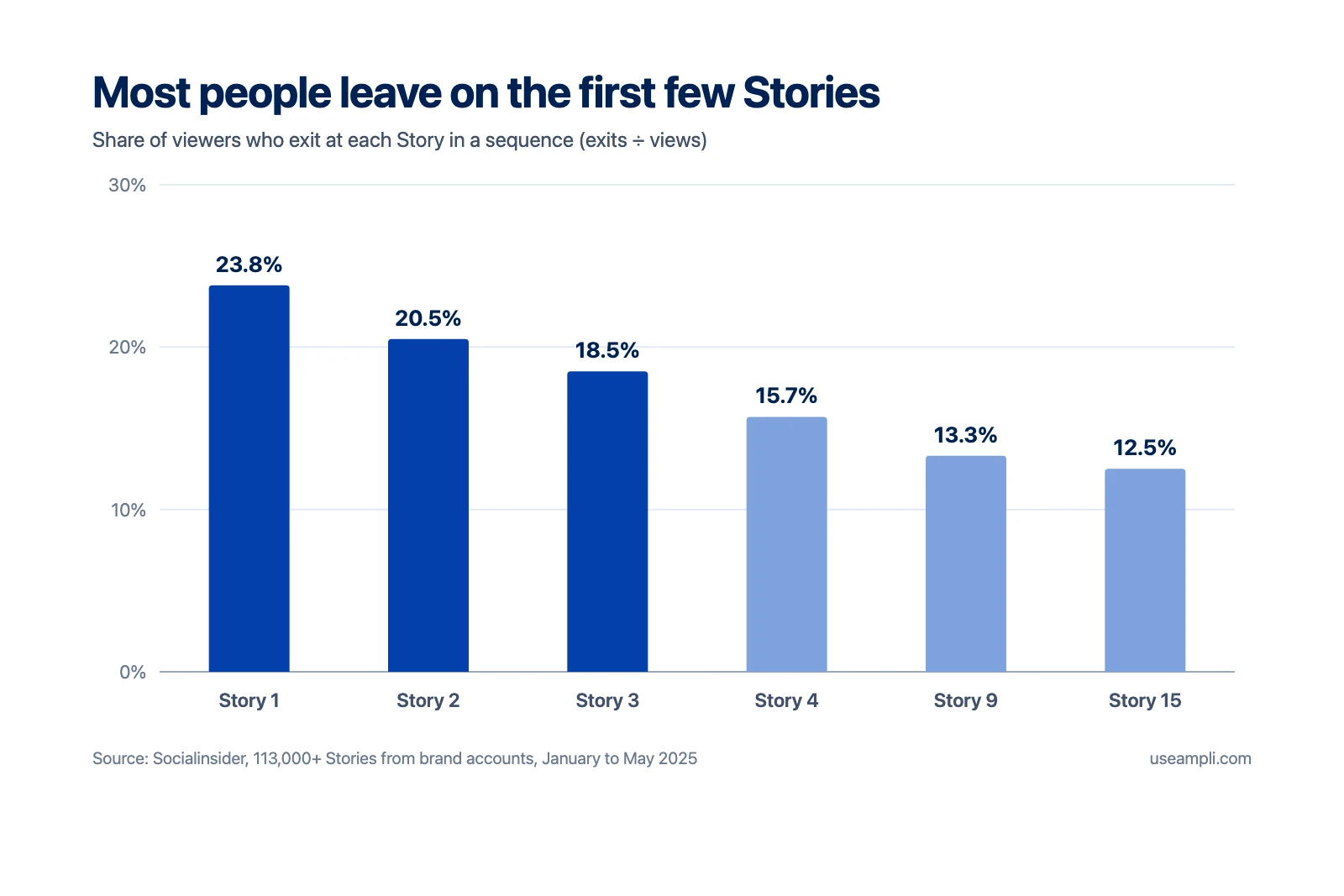
| Position in the sequence | Exit rate |
|---|---|
| Story 1 | 23.8% |
| Story 2 | 20.5% |
| Story 3 | 18.5% |
| Story 4 | 15.7% |
| Story 9 | 13.3% |
| Story 15 | 12.5% |
Source: Socialinsider, 2025.
Video reached more people than photos. At every follower size in the study, video Stories had a higher reach rate than photo Stories. Viewers also tapped past video Stories less often.
Sequences of 6 to 13 Stories reached the most people. Socialinsider calls this the strongest zone for reach and impressions. That’s more than most accounts post by hand, which is one reason scheduling helps.
Ranking explains why consistency matters. Stories are shown only to people who follow you, and Instagram orders the Stories tray using three signals: how often someone watches your Stories, how often they interact with them (for example by liking or replying), and how close you are to them (Instagram). People who watch your Stories regularly keep seeing them near the front, and an account that disappears for a week loses that habit.
One caution: these are correlations from brand accounts, and Socialinsider’s report describes its sample in two slightly different ways. Treat the numbers as a starting point, then check your own Story Insights (see how to turn on Instagram Insights).
How to plan a week of Stories
Scheduling pays off when you batch: make a week of Stories in one session, schedule them, and leave the app for the live, interactive moments. Here’s a starting template for a small business:
| Day | Story idea | Schedule it or post live? |
|---|---|---|
| Monday | A quick tip or how-to, as a short video | Schedule |
| Tuesday | Behind the scenes: your workspace, team or process | Schedule |
| Wednesday | A product, service or offer, with a link | Post live (link sticker) |
| Thursday | A customer photo or review, with permission | Schedule |
| Friday | A poll or question for your audience | Post live (poll sticker) |
| Saturday | A recap of the week or your best post | Schedule |
| Sunday | A preview of what’s coming next week | Schedule |
Five of the seven days run on their own, and the two live days are the ones where you’d want to be around to reply anyway. Add two or three more frames to each day and you reach the 6 to 13 Story range from the data above.
For the time of day, start with when your followers are online. Instagram shows this in your Insights under your followers’ most active times. Our guide to the best time to post on Instagram has starting points if you don’t have enough data yet.
Tips for scheduled Stories that people watch
- Make the first frame count. Nearly a quarter of viewers who leave do it on Story 1. Open with the most interesting image or a clear promise of what’s coming, not a logo.
- Shoot vertical from the start. A horizontal video cropped to 9:16 loses most of the frame. Film in portrait so nothing important gets cut off.
- Mix in video. Video Stories reached more people in Socialinsider’s data. Short clips of 5 to 15 seconds are easy to batch.
- Put the words in the media. Since scheduled Stories have no caption or text tool, add on-screen text in your editor. Keep it large and inside the safe area.
- Space a sequence a few minutes apart. Scheduling Stories a minute or two apart keeps them in order, and the whole set stays live together for most of the 24 hours.
- Keep a steady rhythm. Because ranking depends on how often people watch you, Stories every day beat a burst of 20 once a week.
- Watch the replies. Replies come in as DMs. Answering them is engagement Instagram counts for the next time that person opens the app.
FAQ
Can you schedule Instagram Stories in the Instagram app?
No. The Instagram app can schedule photos, carousels and Reels for professional accounts, but not Stories. To schedule a Story, use Meta Business Suite or a scheduling tool such as Ampli.
Is there a free way to schedule Instagram Stories?
Yes. Meta Business Suite is free and schedules Instagram and Facebook Stories. Ampli’s free plan also schedules Instagram Stories, with 2 connected channels and 30 posts a month.
Do scheduled Stories post automatically?
Yes, for Instagram business and creator accounts. Meta Business Suite and schedulers like Ampli publish the Story at the time you set, with no reminder to tap. Personal accounts can’t be published to automatically by any outside tool.
Can I schedule Instagram Stories with a personal account?
Not automatically. Instagram only allows outside apps to publish to professional accounts. Some tools send a phone reminder instead, and you finish the post yourself. Switching to a free professional account in Instagram’s settings lets your Stories publish on their own.
Can I add a link, poll or music to a scheduled Story?
No. Instagram doesn’t let scheduling tools add stickers, including link, poll, question and location stickers, or songs from its music library. Post those Stories from the app, or put text and graphics into the image or video before you schedule it.
How long can a scheduled Instagram Story video be?
Between 3 and 60 seconds, and up to 100 MB. Split longer videos into several Stories before you schedule them.
How far in advance can I schedule Instagram Stories?
That depends on the tool. Ampli lets you schedule weeks or months ahead. Meta Business Suite has a shorter window, so check its date picker when you schedule.
Can I edit or delete a scheduled Story?
Yes, until it’s published. In Ampli, open the Story from your Schedule tab to change the media or the time, or cancel it. Once it’s live, you can delete it from the Instagram app, but you can’t replace its photo or video.
Can I schedule Facebook Stories too?
Meta Business Suite can schedule Stories to Facebook Pages as well as Instagram. Ampli schedules Stories for Instagram, and regular posts, Reels and videos for Facebook Pages.
Plan your Stories once a week
Stories disappear after a day, which makes them easy to neglect. Scheduling turns them into a weekly task: make a batch, put the strongest frame first, schedule them at the times your followers are online, and save the stickers for the Stories you post live.
Try Ampli free to schedule Instagram Stories alongside your posts, Reels, TikToks and Shorts in one calendar, or let Claude or ChatGPT schedule them for you.